Showing posts with label Network. Show all posts

How To Stop Wi-Fi Stealing And Catch That Person
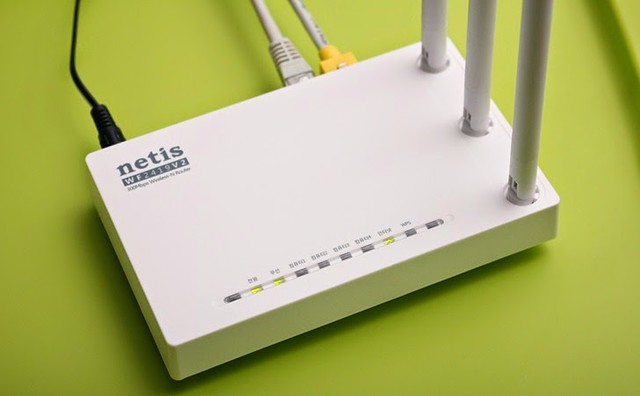

backdoor-Netis-Netcore-Router
Often we are unable to locate an uninvited user who uses our Wi-Fi. If someone uses our Wi-Fi without our knowledge, that would be termed as Wi-Fi stealing.Whatever be the case, to be on the safer side, we must know who is using my Wi-Fi without my permission and how can we stop them. So, here are the steps
Login to your router

Different routers support different login styles. So, I am listing a few of the logging in style, out of these, one might work for you:
  • 1. Punch in the IP address of your router in your browser address bar directly like 192.168.0.1 or 192.168.1.1
  • 2. If the above address does not work, you can also try routerlogin.com and it will redirect to your router admin panel.
  • 3. Enter the administrator username and password.
  • 4. nce you are inside the admin panel, look for menu options like ‘Connected devices’ or ‘Attached devices’.
  • 5. If you are able to find that menu, you can see the MAC Address, IP Address and Device name of all the devices which are connected to your network. This is how my Attached devices looks like.
  • 6. If you see some extra person’s name or some extra device then they are the one who might be using your Wi-Fi without your permission. Read on to know the steps to stop Wi-Fi stealing.

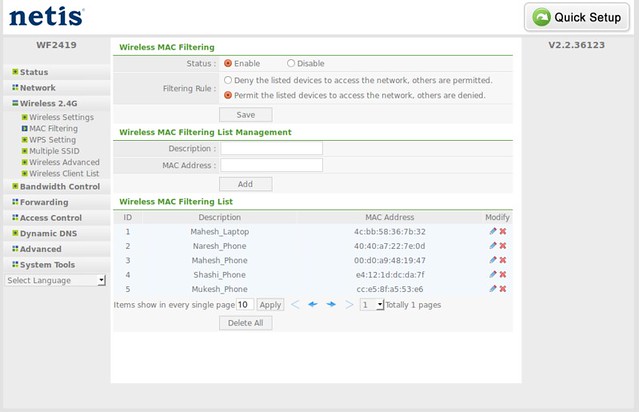
Mac Filtering

How to stop someone from Wi-Fi stealing?

Once you come to a conclusion that someone else is making use of your Wi-Fi resources, you can simply change the password of your Wi-Fi to a stronger password. You can also switch off your SSID broadcast.
If you want a stricter action, you can set up a filter based on the MAC address of the devices.
How To Hack WiFi Using Wps Wpa tester...?


Want to take advantage of your neighbor’s super fast Wi-Fi connection? If they’re smart, they probably have it password protected (otherwise you wouldn’t be reading this, would you?). But if you have an Android phone, you can get back at them for always parking in your spot and slamming the door when they get home at 2 a.m.—by stealing…er, borrowing, their connection.

So Today i am posting how to hack Wi-Fi password in less than 1 min with App Name WiFi Wps Wpa tester .

Requirements:

  •    1. Rooted Android Device (4.0+ recommend).

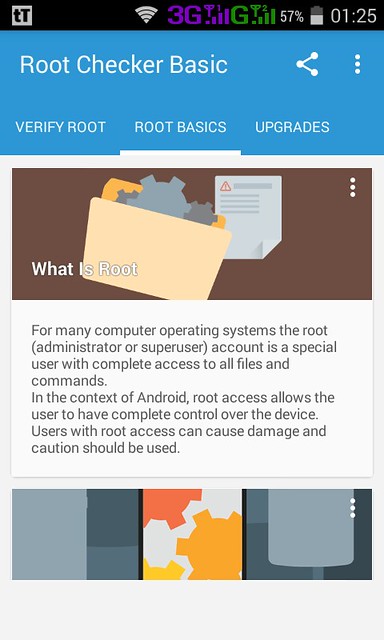
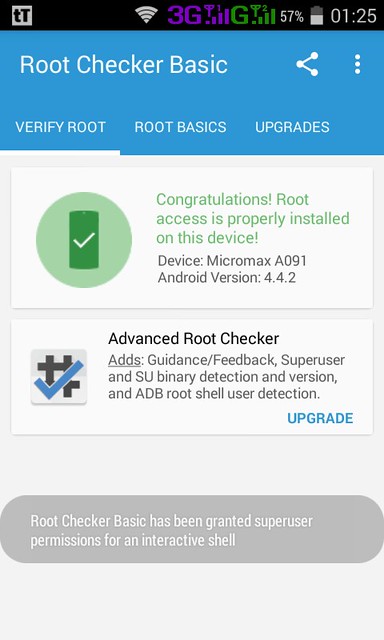
  • Root Checker

    About Root
  •    2. Wpa Wps Tester Premium 2.3.7 Cracked APK or later.
  •    3. Busybox Installed.
  •    4. Terminal Emulator installed. (no needed ).
  •    5. Recommended to use on high signal -60 or less.

HACK WiFi using WiFi Wps Wpa tester:

  •    1. Just download and Install Wpa Wps Tester Premium.
  •    2. Make Sure You Have Enabled The Unknown Sources In Settings/
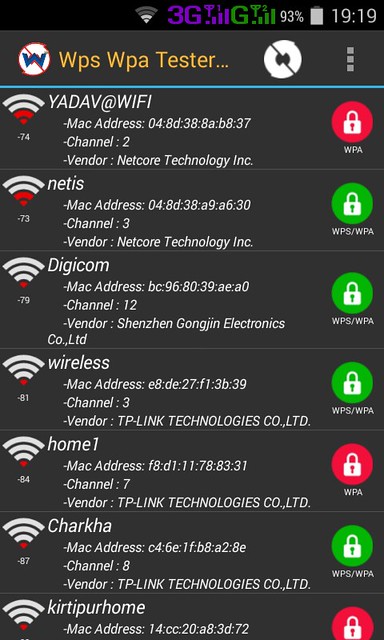
  •    3. Open app and press refresh.
  •    4. Then the list of Wi-Fi networks available will be shown.

  • Scanned Wifi
  •    5. If you see a green Lock Icon click on it

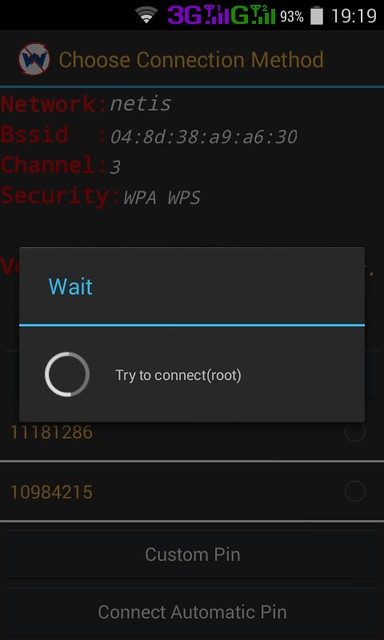
    Click on Connect Automatic Pin
  •    6. Press Connect Automatic Pin

  • Trying To Connect Wifi
  •    7. Copy the password and connect free hack Wi-Fi connection.

How to view saved password of wifi on android device?


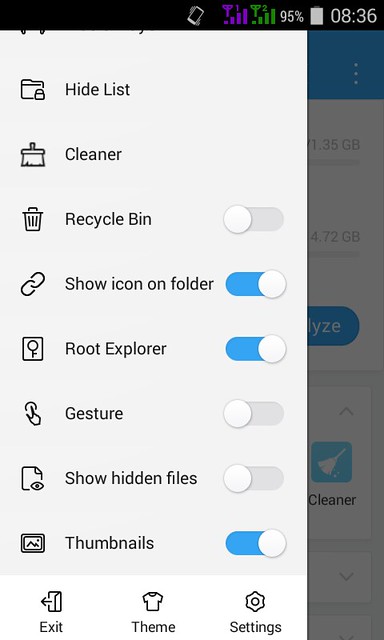
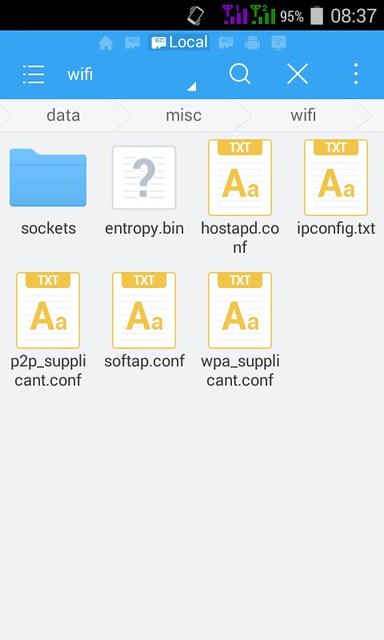
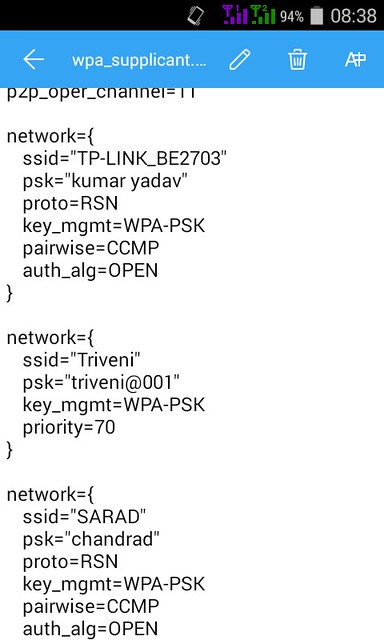
Install ES File Explorer then navigate to data/misc/wifi folder and you will find a file named wpa_supplicant.conf. Tap on the file to open it up and make sure you use ES File Explorer 's built-in text/HTML viewer for the task. In the file you should be able to see the network SSID and their passwords next to it.

Required:

Rooted Android Device and root privilege to ES File Manager.

Root Es File Manager

File Explore In Es File Manager

View Password

Now, you can see the ssid and password saved on your android.

How to find your wireless network password


Find your password on a Windows PC
If you have a computer running Windows that is connected to your wireless network, you can find the password by doing the following:
Windows 10: Find your password

Step 1:       Go to Start      , and select Settings > Network & Internet.
Step 2:       Select the network you want to connect to, and select Connect.
Step 3:       In the search box, enter view network connections, and in the search results, select View network connections.
Step 4:       In Network Connections, press and hold (or right-click) the network name, and select Status  Wireless Properties.
     Step 5:       Select the Security tab, and select Show characters.
The password for the wireless network is displayed in the Network security key field.
Windows 8.1: Find your password
    Step 1:        Swipe in from the right edge of the screen, and tap Settings.
(If you're using a mouse, point to the lower-right corner of the screen, move the mouse pointer up, and click Settings.)
Step 2:     Tap or click the network icon (      or    ) for the network you want to connect to, and tap or click Connect
Step 3:       Swipe in from the right edge of the screen, and tap or click Search.     
     Step 4:       In the search box, enter view network connections, and in the search results tap or    click View network connections.
Step 5:       In the Network Connections window, press and hold or right-click the network name, and tap or click Status.
Step 6:       Tap or click the Wireless Properties button.
Step 7:       Tap or click the Security tab, and tap or click the Show characters check box.
Step 8:       The password for the wireless network is displayed in the Network security key field.

Windows 8: Find your password
Step 1:       From the Start screen, swipe in from the right edge of the screen, and tap Settings.
(If you're using a mouse, point to the upper-right corner of the screen, move the mouse pointer down, and click Settings.)
Step 2:       Tap or click the wireless network (     )
Step 3:       Tap and hold or right click on a wireless network name, and choose View connection properties.
Step 4:       Select Show characters to see the wireless network password.

Windows 7: Find your password
Step 1:       Click the wireless network icon on the task-bar (lower-right corner).
Step 2:       Right-click your wireless network name, and select Properties.
Step 3:       Select Show characters to see the wireless network password.
Find Wi-Fi password using command
If you are more the type-type type, you will prefer the netsh command anyway. This method allows you to find not only the Wi-Fi password of your current connection but also that of previous connections. The syntax of the command looks like this:
netsh wlan show profile name="ConnectionName" key=clear

Find-WIFI-password-on-the-command-prompt-with-netsh
Finding Wi-Fi password on the command line with netsh
Notice that you only need the quotation marks for the connection name (profile name) when the name contains a blank. You can find the password in the Security settings section next to Key Content.
To get a list of your previous Wi-Fi connections, type this command:

netsh wlan show profiles

Find your password on your router’s configuration webpage
If you have a computer that can connect to the Internet, you can find the password by doing the following:
Step 1:      Open a web browser.
Step 2:      Enter the IP address for your wireless router into the search bar (for example, 192.168.1.1). Look for your router’s default IP address in your router documentation or online.
Step 3:      Enter the user name and password to open your router’s configuration webpage. Most router documentation includes the default user name and password.
Step 4:      On the configuration webpage, look for a wireless or wireless settings option.
Step 5:      Look for a security or wireless encryption setting. The security key (sometimes called a network key, a pass phrase, or a network password) should be listed nearby.

Note
Different router manufacturers have different settings pages. If you can't find the wireless security key, contact the router manufacturer.