Calling ASP.Net WebMethod using jQuery AJAX


jQuery allows you to call Server Side ASP.net methods from client side without any PostBack. Actually it is an AJAX call to the server but it allows us to call the method or function defined server side.
Syntax
The following picture describes the syntax of the jQuery AJAX call.
WebMethod using jQuery AJAX
HTML Markup
The following HTML Markup consists of an ASP.Net TextBox and an HTML Button.
<div>
Your Name :
<asp:TextBox ID="txtUserName" runat="server"></asp:TextBox>
<input id="btnGetTime" type="button" value="Show Current Time"
    onclick = "ShowCurrentTime()" />
</div>
Client Side Script
When the Button is clicked the ShowCurrentTime JavaScript function is executed which makes an AJAX call to the GetCurrentTime WebMethod. The value of the TextBox is passed as parameter to the WebMethod.
<script src="http://ajax.googleapis.com/ajax/libs/jquery/1.8.3/jquery.min.js" type="text/javascript"></script>
<script type = "text/javascript">
function ShowCurrentTime() {
    $.ajax({
        type: "POST",
        url: "CS.aspx/GetCurrentTime",
        data: '{name: "' + $("#<%=txtUserName.ClientID%>")[0].value + '" }',
        contentType: "application/json; charset=utf-8",
        dataType: "json",
        success: OnSuccess,
        failure: function(response) {
            alert(response.d);
        }
    });
}
function OnSuccess(response) {
    alert(response.d);
}
</script>
The WebMethod
The following WebMethod returns a greeting message to the user along with the current server time. An important thing to note is that the method is declared as static(C#) and Shared (VB.Net) and is decorated with WebMethod attribute, this is necessary otherwise the method will not be called from client side jQuery AJAX call.
C#
[System.Web.Services.WebMethod]
public static string GetCurrentTime(string name)
{
    return "Hello " + name + Environment.NewLine + "The Current Time is: "
        + DateTime.Now.ToString();
}
VB.Net
<System.Web.Services.WebMethod()> _
Public Shared Function GetCurrentTime(ByVal name As StringAs String
   Return "Hello " & name & Environment.NewLine & "The Current Time is: " & _
            DateTime.Now.ToString()
End Function
Source: Internet
C# SQL Server Connection


You can connect your C# application to data in a SQL Server database using the .NET Framework Data Provider for SQL Server. The first step in a C# application is to create an instance of the Server object and to establish its connection to an instance of Microsoft SQL Server.
The SqlConnection Object is Handling the part of physical communication between the C# application and the SQL Server Database . An instance of the SqlConnection class in C# is supported the Data Provider for SQL Server Database. The SqlConnection instance takes Connection String as argument and pass the value to the Constructor statement.

Sql Server connection string
connetionString="Data Source=ServerName;
Initial Catalog=DatabaseName;User ID=UserName;Password=Password"

If you have a named instance of SQL Server, you'll need to add that as well.
 "Server=localhost\sqlexpress"

When the connection is established , SQL Commands will execute with the help of the Connection Object and retrieve or manipulate the data in the database. Once the Database activities is over , Connection should be closed and release the Data Source resources .

cnn.Close();

The Close() method in SqlConnection Class is used to close the Database Connection. The Close method rolls back any pending transactions and releases the Connection from the SQL Server Database.
A Sample C# Program that connect SQL Server using connection string.

using System;
using System.Windows.Forms;
using System.Data.SqlClient;
namespace WindowsApplication1
{
    public partial class Form1 : Form
    {
        public Form1()
        {
            InitializeComponent();
        }
        private void button1_Click(object sender, EventArgs e)
        {
            string connetionString = null;
            SqlConnection cnn ;
   connetionString = "Data Source=ServerName;Initial Catalog=DatabaseName;User ID=UserName;Password=Password"
            cnn = new SqlConnection(connetionString);
            try
            {
                cnn.Open();
                MessageBox.Show ("Connection Open ! ");
                cnn.Close();
            }
            catch (Exception ex)
            {
                MessageBox.Show("Can not open connection ! ");
            }
        }
    }
}

Connect via an IP address
connetionString="Data Source=IP_ADDRESS,PORT;
Network Library=DBMSSOCN;Initial Catalog=DatabaseName;
User ID=UserName;Password=Password"

1433 is the default port for SQL Server.

Trusted Connection from a CE device
connetionString="Data Source=ServerName;
Initial Catalog=DatabaseName;Integrated Security=SSPI;
User ID=myDomain\UserName;Password=Password;

This will only work on a CE device

Connecting to SQL Server using windows authentication
"Server= localhost; Database= employeedetails;
Integrated Security=SSPI;"

A sample c# program that demonstrate how to execute sql statement and read data from SQL server.

using System;
using System.Windows.Forms;
using System.Data.SqlClient;
namespace WindowsApplication1
{
    public partial class Form1 : Form
    {
        public Form1()
        {
            InitializeComponent();
        }
        private void button1_Click(object sender, EventArgs e)
        {
            string connetionString = null;
            SqlConnection connection  ;
            SqlCommand command ;
            string sql = null;
            SqlDataReader dataReader ;
            connetionString = "Data Source=ServerName;Initial Catalog=DatabaseName;User ID=UserName;Password=Password";
            sql = "Your SQL Statement Here , like Select * from product";
            connection = new SqlConnection(connetionString);
            try
            {
                connection.Open();
                command = new SqlCommand(sql, connection);
                dataReader = command.ExecuteReader();
                while (dataReader.Read())
                {
                    MessageBox.Show(dataReader.GetValue(0) + " - " + dataReader.GetValue(1) + " - " + dataReader.GetValue(2));
                }
                dataReader.Close();
                command.Dispose();
                connection.Close();
            }
            catch (Exception ex)
            {
                MessageBox.Show("Can not open connection ! ");
            }
        }
    }


}

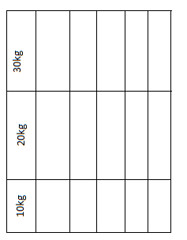
Vertical (rotated) text in HTML table


You can do that by applying your rotate CSS to an inner element and then adjusting the height of the element to match its width since the element was rotated to fit it into the <td>.
Vertical (rotated) text in HTML table

<style>
 .box_rotate
{
 -moz-transform: rotate(270deg);  /* FF3.5+ */
 -o-transform: rotate(270deg);  /* Opera 10.5 */
 -webkit-transform: rotate(270deg);  /* Saf3.1+, Chrome */
  filter: progid:DXImageTransform.Microsoft.BasicImage(rotation=0.083);  /* IE6,IE7 */
 -ms-filter: "progid:DXImageTransform.Microsoft.BasicImage(rotation=0.083)"; /* IE8 */
}
</style>
Use in html table like;
<table>
<tr>
 <td class="box_rotate">30kg</td>
<td></td>
<td></td>
</tr>
<tr>
<td class="box_rotate">20kg</td>
<td></td>
<td></td>
</tr>
<tr>
<td class="box_rotate">10kg</td>
<td></td>
<td></td>
</tr>
</table>