Find your password on a Windows PC
If you have a computer running Windows that is connected to your wireless network, you can find the password by doing the following:
 Windows 10: Find your password
Step 1: Go to Start
 , and select Settings > Network & Internet.
Step 2: Select the network you want to connect to, and select Connect.
Step 3: In the search box, enter view network connections, and in the search results, select View network connections.
Step 4: In Network Connections, press and hold (or right-click) the network name, and select Status Wireless Properties.
Step 5: Select the Security tab, and select Show characters.
The password for the wireless network is displayed in the Network security key field.
Windows 8.1: Find your password
Step 1: Swipe in from the right edge of the screen, and tap Settings.
(If you're using a mouse, point to the lower-right corner of the screen, move the mouse pointer up, and click Settings.)
Step 2: Tap or click the network icon (
 or
 ) for the network you want to connect to, and tap or click Connect
Step 3: Swipe in from the right edge of the screen, and tap or click Search.
Step 4: In the search box, enter view network connections, and in the search results tap or click View network connections.
Step 5: In the Network Connections window, press and hold or right-click the network name, and tap or click Status.
Step 6: Tap or click the Wireless Properties button.
Step 7: Tap or click the Security tab, and tap or click the Show characters check box.
Step 8: The password for the wireless network is displayed in the Network security key field.
Windows 8: Find your password
Step 1: From the Start screen, swipe in from the right edge of the screen, and tap Settings.
(If you're using a mouse, point to the upper-right corner of the screen, move the mouse pointer down, and click Settings.)
Step 2: Tap or click the wireless network (
)
Step 3: Tap and hold or right click on a wireless network name, and choose View connection properties.
Step 4: Select Show characters to see the wireless network password.
Windows 7: Find your password
Step 1: Click the wireless network icon on the task-bar (lower-right corner).
Step 2: Right-click your wireless network name, and select Properties.
Step 3: Select Show characters to see the wireless network password.
Find Wi-Fi password using command
If you are more the type-type type, you will prefer the netsh command anyway. This method allows you to find not only the Wi-Fi password of your current connection but also that of previous connections. The syntax of the command looks like this:
netsh wlan show profile name="ConnectionName" key=clear
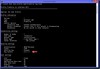
Finding Wi-Fi password on the command line with netsh
Notice that you only need the quotation marks for the connection name (profile name) when the name contains a blank. You can find the password in the Security settings section next to Key Content.
To get a list of your previous Wi-Fi connections, type this command:
netsh wlan show profiles
Find your password on your router’s configuration webpage
If you have a computer that can connect to the Internet, you can find the password by doing the following:
Step 1: Open a web browser.
Step 2: Enter the IP address for your wireless router into the search bar (for example, 192.168.1.1). Look for your router’s default IP address in your router documentation or online.
Step 3: Enter the user name and password to open your router’s configuration webpage. Most router documentation includes the default user name and password.
Step 4: On the configuration webpage, look for a wireless or wireless settings option.
Step 5: Look for a security or wireless encryption setting. The security key (sometimes called a network key, a pass phrase, or a network password) should be listed nearby.
Note
Different router manufacturers have different settings pages. If you can't find the wireless security key, contact the router manufacturer.